Many iPhone, iPad users noticed that after updating to iOS 26.1, the classic “Block Caller” option appears to disappear completely from the Phone app.
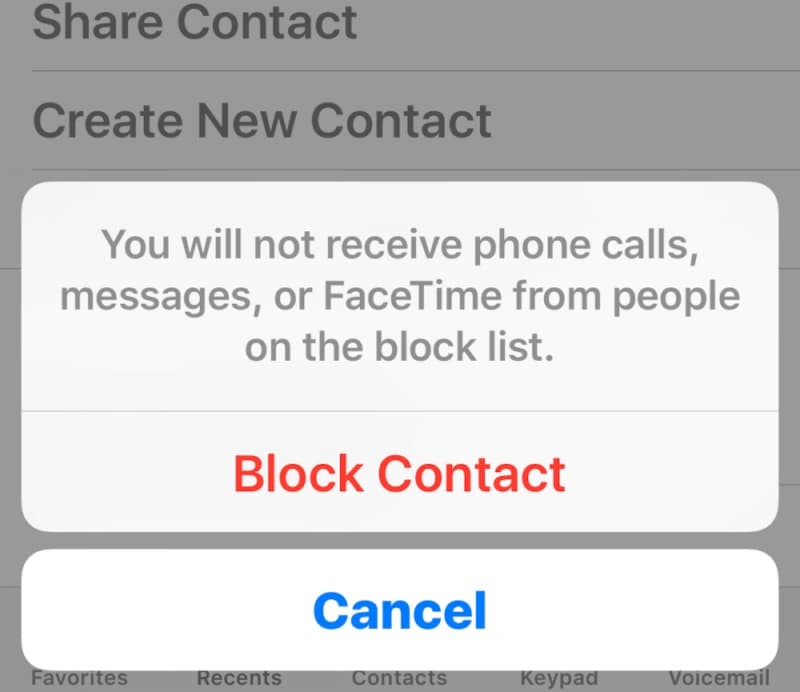
The issue has been heavily reported on:
- iPhone SE (3rd generation)
- iPhone 13
- other iPhones running iOS 26.1
Users say:
- the old block menu is harder to find
- spam blocking feels confusing
- the new interface is much less intuitive than older iOS versions
Fortunately, users discovered several ways to access blocking features again.
What Changed in iOS 26.1?
Before iOS 26:
- users could simply tap the “i” button next to a number
- scroll down
- tap “Block Caller”
After iOS 26.1:
- the option appears hidden
- the call interface changed
- Apple introduced new spam and call handling tools
Many users assumed the feature was removed entirely.
Working Solution: Swipe Left on the Number
A user tested this successfully on an iPhone 13 running iOS 26.1.
Steps:
- Open:
- Slightly swipe LEFT on the phone number
You should now see 3 icons:
- Orange circle with hand icon
- Blue timer icon
- Red trash icon
How to Block the Caller
Tap:
This reveals:
- “Block”
- “Block and Report as Spam”
This is the new hidden blocking method introduced in iOS 26.1.
Many users completely missed it because:
- it is not obvious
- the old menu system changed
Alternative Method Through Settings
You can also manually add blocked numbers.
Steps:
- Open:
- Go to:
- Scroll down to:
- Tap:
This allows manual blocking even if the call screen method fails.
“Silence Unknown Callers” and Call View Changes
Some users also discovered another confusing iOS 26.1 behavior involving call layout settings.
Inside the call screen:
- tap the 3 dashed lines in the top-right corner
You can switch between:
- Unified view
- Classic view
Some users report:
- expected calls were being hidden in Unified mode
- switching back to Classic view improved call visibility
However:
- users are unsure whether this fully fixes spam filtering problems
Why Users Are Frustrated
Many users say:
- blocking calls became unnecessarily complicated
- basic features are harder to access
- iOS 26.1 feels less user-friendly
Some even joked about returning to older phones because:
- the new system feels overly cluttered
- spam handling is now confusing
Devices Commonly Mentioned
The issue is being discussed on:
- iPhone SE (3rd generation)
- iPhone 13
- iPhones running iOS 26.1
The behavior may also affect newer iPhones using similar Phone app layouts.
Final Thoughts
The “Block Caller” option in iOS 26.1 was not fully removed — but Apple significantly changed where it appears.
The easiest workaround is:
- slightly swipe left on a phone number
- tap the orange hand icon
- choose:
- Block
- or Block and Report as Spam
Users can also:
- manually add blocked contacts through Settings
- switch back to Classic call view for easier call management


