Microsoft Store Showing “Sorry About That! Something Went Wrong” Error? Here’s How to Fix It

Many Windows users encounter a frustrating error in the Microsoft Store that says:

“Sorry about that! Something went wrong, but we’re fixing it. Try to update or come back later.”

This message can appear while:

  • opening Microsoft Store
  • downloading apps
  • updating apps
  • signing into Store
  • installing games or software

In some cases, the Store becomes completely unusable.
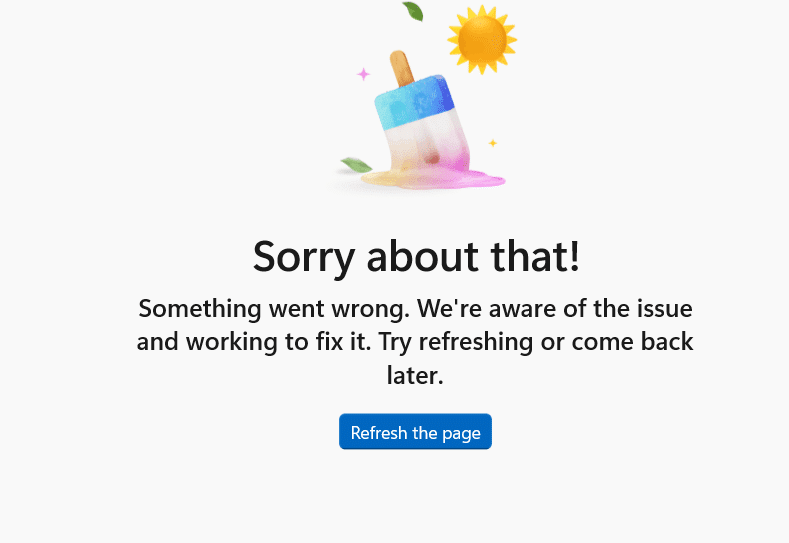
Microsoft Store Showing “Sorry About That! Something Went Wrong” Error? Here’s How to Fix It 2026

Why This Error Happens

The issue is usually caused by:

  • corrupted Microsoft Store cache
  • Windows update problems
  • account synchronization issues
  • internet or DNS conflicts
  • damaged Store components

Sometimes the error is temporary and caused by server-side problems from Microsoft.


Common Symptoms

Users experiencing this issue often report:

  • Microsoft Store not opening properly
  • Downloads stuck or failing
  • Apps refusing to update
  • Infinite loading screen
  • Error message appearing repeatedly
  • Store working on another account but not main account

Fixes That Usually Work

1. Restart Your Computer

This sounds basic, but temporary Store processes often get stuck.

A full restart refreshes:

  • Store services
  • background authentication
  • update services

2. Reset Microsoft Store Cache (Most Effective Fix)

Windows includes a built-in cache reset tool.

Steps:

  1. Press:
Windows + R
  1. Type:
wsreset.exe
  1. Press Enter

A blank Command Prompt window will open briefly, then Microsoft Store should restart automatically.

This clears corrupted Store cache without deleting apps.


3. Check Windows Updates

Outdated Windows versions often break Store functionality.

Go to:

  • Settings → Windows Update

Then:

  • install pending updates
  • restart system

4. Sign Out and Sign Back Into Microsoft Store

Sometimes account authentication becomes corrupted.

Steps:

  1. Open Microsoft Store
  2. Click profile icon
  3. Sign out
  4. Restart Store
  5. Sign in again

This refreshes Store account sync.


5. Repair or Reset Microsoft Store

Steps:

  1. Open:
  • Settings → Apps → Installed Apps
  1. Find:
  • Microsoft Store
  1. Open:
  • Advanced Options
  1. Try:
  • Repair first
  • Reset if Repair fails

Resetting may remove Store preferences but often fixes persistent issues.


6. Check Date, Time, and Region Settings

Incorrect system settings can prevent Store authentication.

Verify:

  • automatic date and time enabled
  • correct region selected
  • proper timezone

7. Run Windows Store Troubleshooter

Windows includes an automatic diagnostic tool.

Go to:

  • Settings → System → Troubleshoot → Other troubleshooters

Run:

  • Windows Store Apps troubleshooter

It may automatically repair common problems.


8. Reinstall Microsoft Store Using PowerShell

If the Store is badly corrupted:

Open PowerShell as Administrator and run:

Get-AppxPackage -allusers Microsoft.WindowsStore | Foreach {Add-AppxPackage -DisableDevelopmentMode -Register "$($_.InstallLocation)\AppXManifest.xml"}

This reinstalls core Microsoft Store components.


Possible Internet or DNS Issues

Sometimes Store errors are network-related.

Try:

  • restarting router
  • disabling VPN temporarily
  • changing DNS server
  • testing another internet connection

When the Problem Is on Microsoft’s Side

If many users are reporting the same issue simultaneously, the problem may be:

  • Microsoft server outage
  • Store backend issue
  • authentication system failure

In such cases, waiting a few hours may resolve it automatically.


What Usually Does NOT Help

  • Reinstalling Windows immediately
  • Deleting random system files
  • Repeatedly opening Store without resetting cache

These rarely solve the root cause.

Leave a Reply

Your email address will not be published. Required fields are marked *
