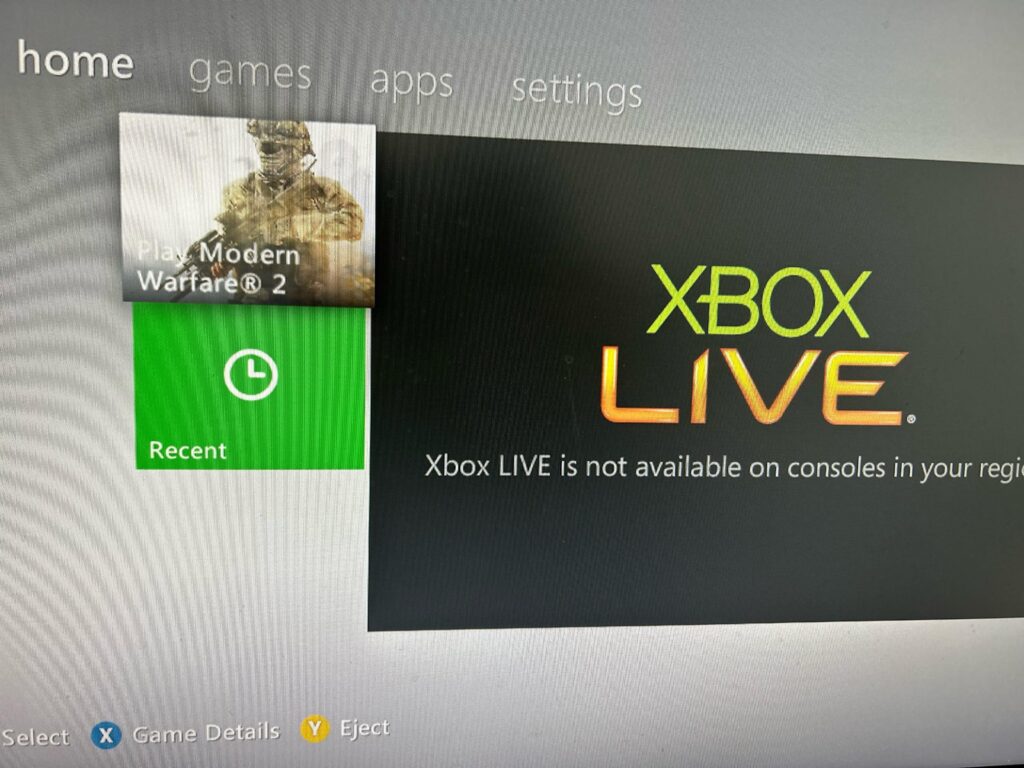
Many Xbox users occasionally encounter the message:
“Xbox Live online stores are currently unavailable”
This error usually appears when trying to:
- open the Xbox Store
- buy games
- redeem content
- access subscriptions
- browse marketplace items
The issue can happen on:
- Xbox One
- Xbox Series X/S
- older Xbox consoles
- Windows Xbox apps
In most cases, the problem is temporary, but sometimes local settings or network issues are responsible.
Why This Error Happens
The error is commonly caused by:
- Xbox Live server problems
- internet connection issues
- account authentication failures
- corrupted cache
- payment or region mismatches
Sometimes the Xbox Store itself goes offline temporarily due to maintenance from Microsoft.
Common Symptoms
Users experiencing this issue may notice:
- Xbox Store not loading
- Marketplace pages showing blank screen
- Purchases failing
- Subscription pages unavailable
- Error appearing repeatedly after sign-in
- Games downloading normally but store inaccessible
Fixes That Usually Work
1. Check Xbox Live Server Status
Before changing settings, verify whether Xbox services are down.
If Xbox Store services are experiencing outages, the problem is likely temporary and affects many users.
2. Restart Your Xbox Console
Temporary authentication or cache issues are very common.
Steps:
- Turn off the Xbox completely
- Unplug power cable for 1 minute
- Restart the console
This clears temporary system memory.
3. Check Your Internet Connection
Xbox Store requires stable internet access.
Verify:
- Wi-Fi or Ethernet is connected
- internet speed is stable
- DNS is working properly
If possible:
- restart router
- try another network temporarily
4. Sign Out and Sign Back Into Xbox Account
Sometimes account authentication becomes corrupted.
Steps:
- Sign out of your Xbox profile
- Restart console
- Sign back in
This refreshes Xbox Live authentication tokens.
5. Clear Alternate MAC Address
Network conflicts can sometimes block Store access.
Steps:
- Open:
- Settings → Network → Advanced Settings
- Select:
- Choose:
- Restart console
6. Verify Region and Time Settings
Incorrect location settings may prevent Store access.
Check:
- country/region
- timezone
- system date and time
The Store region should match your account region.
7. Remove and Re-Add Your Xbox Account
If the issue affects only one account:
Steps:
- Remove your Xbox account from console
- Restart device
- Add account again
This refreshes account configuration files.
8. Power Cycle the Console Properly
A full power cycle can solve deeper cache issues.
Steps:
- Hold Xbox power button for 10 seconds
- Wait until fully shut down
- Unplug power for 1 minute
- Restart console
Windows Xbox App Users
If the issue appears on PC:
Try:
- resetting Xbox app
- updating Gaming Services
- updating Microsoft Store
- signing out/in again
Also ensure:
- Windows is updated
- Xbox services are running
When the Problem Is on Microsoft’s Side
Sometimes the issue is caused by:
- Xbox Live outages
- server maintenance
- marketplace backend problems
In these situations:
- nothing is wrong with your console
- waiting is often the only solution
What Usually Does NOT Help
- Factory resetting immediately
- Repeatedly retrying purchases
- Spamming login attempts
These can sometimes create additional authentication problems.


