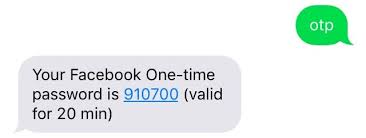
If you’re trying to log into your Facebook account and keep getting stuck at the “Enter the code sent to your mobile number” step — but no code ever arrives — you’re not alone. In 2025, this has become a common issue affecting users across iOS, Android, and desktop platforms. Whether you’re recovering a locked account, accessing Messenger, or confirming two-factor authentication (2FA), this problem can be extremely frustrating.
In this blog, we break down the reasons why Facebook SMS codes are not received, and the proven solutions that have worked for many users.
Why You’re Not Receiving Facebook SMS Codes 2025
Several reasons can cause this issue:
Two-factor authentication (2FA) was enabled without your knowledge
Facebook’s verification system is delayed or bugged
Your mobile number is blocked from receiving messages from 32665 (Facebook’s SMS code sender)
You are using a VPN, which might trigger Meta’s anti-spam filters
Your browser cookies or cache were recently cleared
Messages from 32665 are accidentally blocked on your device or carrier level
Real-Life Scenarios from Facebook Users
Many users have shared their experiences online:
They were logged out suddenly and prompted to enter a code they never received.
They tried all usual methods: sending “ON”, “START”, and “OTP” to 32665, switching phones, toggling airplane mode, and trying different browsers — all with no luck.
The code worked briefly through Messenger or on another device but then stopped working.
For some, the problem was linked to VPN usage, cookie deletion, or blocked numbers.
Step-by-Step Fixes for Facebook SMS Code Not Received
1. Check If 32665 Is Blocked
Go to your phone’s SMS settings:
On iPhone: Settings > Messages > Blocked Contacts
On Android: Open Messages app > Settings > Blocked numbers Make sure 32665 is not blocked.
2. Enable SMS Messaging from Facebook
Text the word:
on
or start To 32665 (this is Facebook’s official SMS code sender number). You should get an automated reply like: “SMS notifications are now enabled.”
If you receive that, try logging in again and requesting the code.
3. Turn Off VPN or Web Protection Temporarily
If you’re using NordVPN, Avast, or another privacy app:
Pause Threat Protection
Turn off VPN temporarily
Retry logging into Facebook
Many users have reported success after turning off VPNs or security firewalls during the login process.
4. Use a Different Device or Messenger App
Try logging into Facebook via:
Messenger app (especially if still logged in there)
A different phone or tablet
Mobile browser in incognito mode
Sometimes Messenger shows a different verification screen that allows code delivery.
5. Recover Facebook account from Instagram Account:
Like some user , Instagram account linked with the FB account is working but Facebook asks for two factor authentication. Here is how you can recover Facebook account from Instagram :
Log in through Instagram and go to the “Accounts Center” in “Settings and privacy”.
Go to “Personal details”.
Go to “Account ownership and control”.
Go to “Deactivation or deletion”.
Go to your Facebook account.
Select “Deactivate account” and go to “Continue” (DO NOT SELECT “DELETE ACCOUNT”).
Go to “Continue” again and enter your password.
Select “This is temporary, I’ll be back.” and go to “Continue”.
Select “Don’t reactivate automatically” under “Automatically reactivate my account in:” and then go to “Continue”.
Make sure to select the option to leave Messenger active (if it gives you the option) and go to “Deactivate my account”.
Get on a browser and log into your Facebook account.
Now, you are back into your Facebook account and can set up your 2FA again if you wish!
5. Visit Facebook’s Account Recovery Page
Go to: facebook.com/hacked Follow the steps to identify and recover your account. This process has worked for many users when the regular login method failed.
Tips for Long-Term Prevention
Link an email address to your Facebook account for alternate verification
Save your backup codes if using 2FA
Regularly check SMS settings to ensure Facebook isn’t blocked
Avoid frequent login attempts, which can trigger temporary lockouts
Use Facebook notifications instead of SMS wherever possible
Final Thoughts
If you’re not receiving Facebook SMS codes in 2025, it’s often due to a simple block or misconfiguration. By following the steps above — especially unblocking 32665, sending “on” or “start”, and disabling VPN — you can resolve the issue and regain access to your account.
Many users have shared that while the fix is simple, patience is key. Sometimes, the system takes a few hours (or even a few days) to reset after you enable SMS support.
Still stuck? Drop a comment below or request a custom guide based on your device or region. Help is always available!
Newsletter Updates
Enter your email address below and subscribe to our newsletter