iPhone Screen Mirroring Not Working? Fix AirPlay Issues Fast

If your iPhone suddenly won’t screen mirror to your TV, you’re not alone. Many users report that AirPlay or screen mirroring stops working after iOS updates, even when everything seems set up correctly.
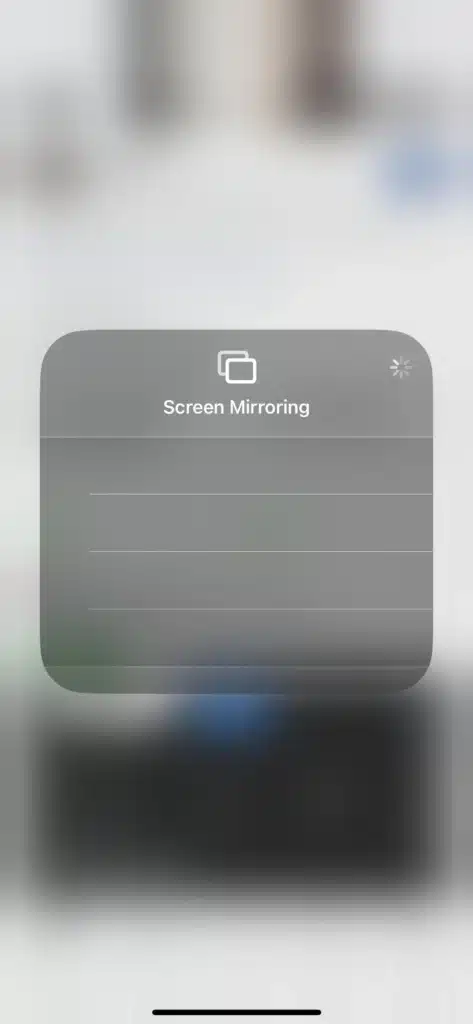
iPhone 14 , 15 , 16 , 17  Screen Mirroring Not Working? Fix AirPlay Issues Fast

This guide breaks down the problem and gives you practical fixes that actually work.

Users across different iPhone models like iPhone 11, 12 Pro Max, and iPhone 13 report:

  • TV not appearing in screen mirroring list
  • Infinite loading when trying to connect
  • Works with third-party apps but not native AirPlay
  • Suddenly stopped working after iOS update
  • Samsung TVs not connecting specifically

1. iOS Update Glitches

After updates, AirPlay settings or network permissions may behave differently.

2. Network Conflicts

Even if both devices are on the same Wi-Fi, hidden settings can block connection.

3. TV Compatibility Issues

Some users report frequent issues with Samsung TVs (especially with Tizen OS), while LG and Sony TVs work fine.

4. Private Wi-Fi Address Setting

This is one of the most overlooked causes.


How to fix iPhone 16 Screen Mirroring Not Working with LG , Samsung, Sony TV

1. Turn OFF Private Wi-Fi Address (Important Fix)

This solution has worked for many users:

Steps:

  1. Go to Settings → Wi-Fi
  2. Tap the ⓘ icon next to your network
  3. Turn OFF Private Wi-Fi Address
  4. Go back and try Screen Mirroring again

After it connects once, you can turn it back ON.


2. Restart Everything

  • Restart your iPhone
  • Restart your TV
  • Restart your Wi-Fi router

This clears temporary connection bugs.


3. Use Same Network (Double Check)

  • Ensure both iPhone and TV are on the exact same Wi-Fi band (2.4GHz or 5GHz)
  • Avoid guest networks

4. Try Wired Connection for TV

If possible:

  • Connect TV to router via Ethernet cable

This improves stability and often fixes detection issues.


5. Check AirPlay Settings on TV

Make sure:

  • AirPlay is enabled
  • TV is discoverable
  • No restrictions are blocking connections

6. Try Alternative Apps (Temporary Solution)

If native mirroring fails, apps like DoCast can help mirror your screen wirelessly.


7. Reset Network Settings (Last Option)

If nothing works:

  • Go to Settings → General → Transfer or Reset → Reset Network Settings

This will remove saved Wi-Fi passwords.


Known Issue with Samsung TVs

Many users report that:

  • AirPlay works inconsistently on Samsung TVs
  • Third-party apps connect, but native mirroring fails

This suggests a compatibility or software issue between iOS and Samsung’s system.


Final Thoughts

If your iPhone screen mirroring suddenly stopped working:

  • It’s not just your device
  • It’s often caused by iOS updates or network settings

The Private Wi-Fi Address fix and Ethernet connection are the most effective solutions reported so far.

Newsletter Updates

Enter your email address below and subscribe to our newsletter

Leave a Reply

Your email address will not be published. Required fields are marked *
