Fix Google Sheets Says “AI Function Not Available”? Here’s the Real Reason and How to Fix It

If you’re trying to use an AI feature in Google Sheets and you see the message “AI function not available”, you’re not alone. This error has become increasingly common as Google rolls out AI-powered tools across its workspace ecosystem.

In this guide, we’ll explain why this message appears, what it actually means, and how you can fix it.
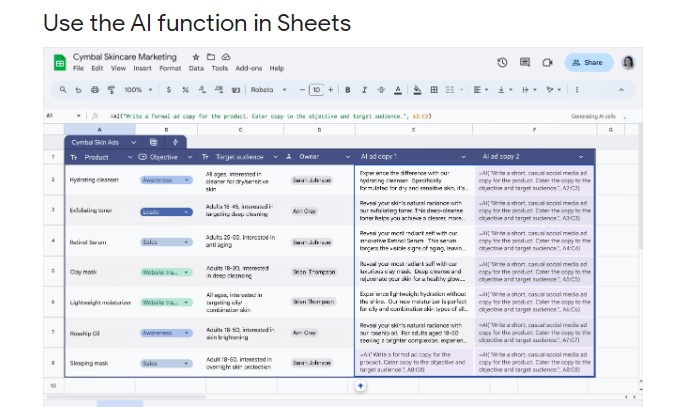
Google Sheets Says “AI Function Not Available” 2026

What Does “AI Function Not Available” Mean in Google Sheets?

The message typically appears when:

  • You try to use an AI formula (like =AI() or smart assist features)
  • You attempt to access Gemini AI inside Sheets
  • Your account does not have AI access enabled
  • Your region or subscription plan does not support it

In most cases, it’s not a technical error — it’s an access limitation.


Main Reasons Google Sheets Shows “AI Function Not Available”

1. You Don’t Have a Google Workspace AI Plan

Google’s AI features in Sheets are part of paid plans such as:

  • Google Workspace Business Standard or higher
  • Gemini for Workspace add-on

If you’re using:

  • A free Gmail account
  • An older Workspace plan
  • A school or government account without AI enabled

You may not have access to AI functions.

For more details, read this Google Page


2. Gemini AI Is Not Enabled for Your Account

Even if your organization has access, AI features must be enabled by the admin.

If you’re using a company or school email, ask your admin to:

  • Enable Gemini AI
  • Turn on Smart features and personalization
  • Allow experimental AI features

3. Feature Not Yet Rolled Out in Your Region

Google often releases AI features gradually.

Possible rollout limitations:

  • Country-based restrictions
  • Language restrictions
  • Staggered rollout by account type

If your colleague has it but you don’t, this may be the reason.


4. You’re Using an Unsupported AI Formula

Some users try entering unofficial AI formulas such as:

=AI("Summarize this data")

If your account doesn’t officially support this function, Sheets will return “AI function not available.”

Google Sheets does not currently support a public universal AI formula for all users.


5. Browser or Extension Conflict

Occasionally, browser extensions interfere with AI features.

Try:

  • Opening Sheets in Incognito mode
  • Disabling extensions
  • Switching browsers
  • Clearing cache

6. Account Type Restrictions

Some accounts have limitations:

  • School-managed Google accounts
  • Enterprise accounts with restricted policies
  • Government domain accounts

In these cases, AI may be intentionally disabled.


How to Fix “AI Function Not Available” in Google Sheets

Step 1: Check Your Google Plan

Go to:
Google Account → Subscriptions

Confirm whether you have:

  • Google Workspace Business Standard or higher
  • Gemini for Google Workspace

If not, upgrade may be required.


Step 2: Ask Admin to Enable AI

If using a company email:

  • Contact your Workspace admin
  • Ask if Gemini AI is activated
  • Confirm Smart features are turned on

Step 3: Use Official AI Entry Points

Instead of typing formulas manually:

  • Click “Help me organize”
  • Use Smart suggestions
  • Try Gemini sidebar (if available)

If you don’t see these options, your account likely does not have AI enabled.


Step 4: Try a Different Google Account

Log in with:

  • A personal Gmail
  • A different Workspace account

This helps confirm whether the issue is account-specific.


Is There a Free Alternative?

If you cannot access AI inside Google Sheets, you can:

  • Use ChatGPT to analyze spreadsheet data
  • Export data and paste into AI tools
  • Use third-party AI spreadsheet extensions

Some AI tools integrate with Sheets through add-ons, but availability varies.


Why Google Restricts AI Functions

AI features cost significant computing resources. For that reason:

  • They are included in paid tiers
  • They are rolled out gradually
  • They are restricted for compliance reasons

This is not a bug in most cases — it’s an access issue.


Final Thoughts

If Google Sheets says “AI function not available,” it usually means:

  • Your plan doesn’t include AI
  • Gemini is not enabled
  • Your admin has restricted access
  • The feature hasn’t rolled out to your account yet

Newsletter Updates

Enter your email address below and subscribe to our newsletter

Leave a Reply

Your email address will not be published. Required fields are marked *